3.4. NPK Package Management in Nuclei Studio VSCode
Nuclei Studio VSCode uses the same Nuclei Package (NPK) mechanism as Nuclei Studio IDE: the SDK / SSP / BSP / APP components a project depends on are distributed as NPK packages, and packages installed by either tool are shared. For the NPK concept and package structure, see Nuclei Studio NPK Overview; for package development, see Nuclei Studio NPK Creation and Sharing. This chapter only describes how to manage NPK packages in Nuclei Studio VSCode.
Note
Install the required NPK packages before creating a project; otherwise no board or SDK will be selectable in the project wizard, and the wizard shows “Please install the required NPK packages first.” with an Open NPK Package Management button.
3.4.1. Opening the NPK Package Management Page
Click NPK Package Management in the WELCOME panel to open the Package Management page.
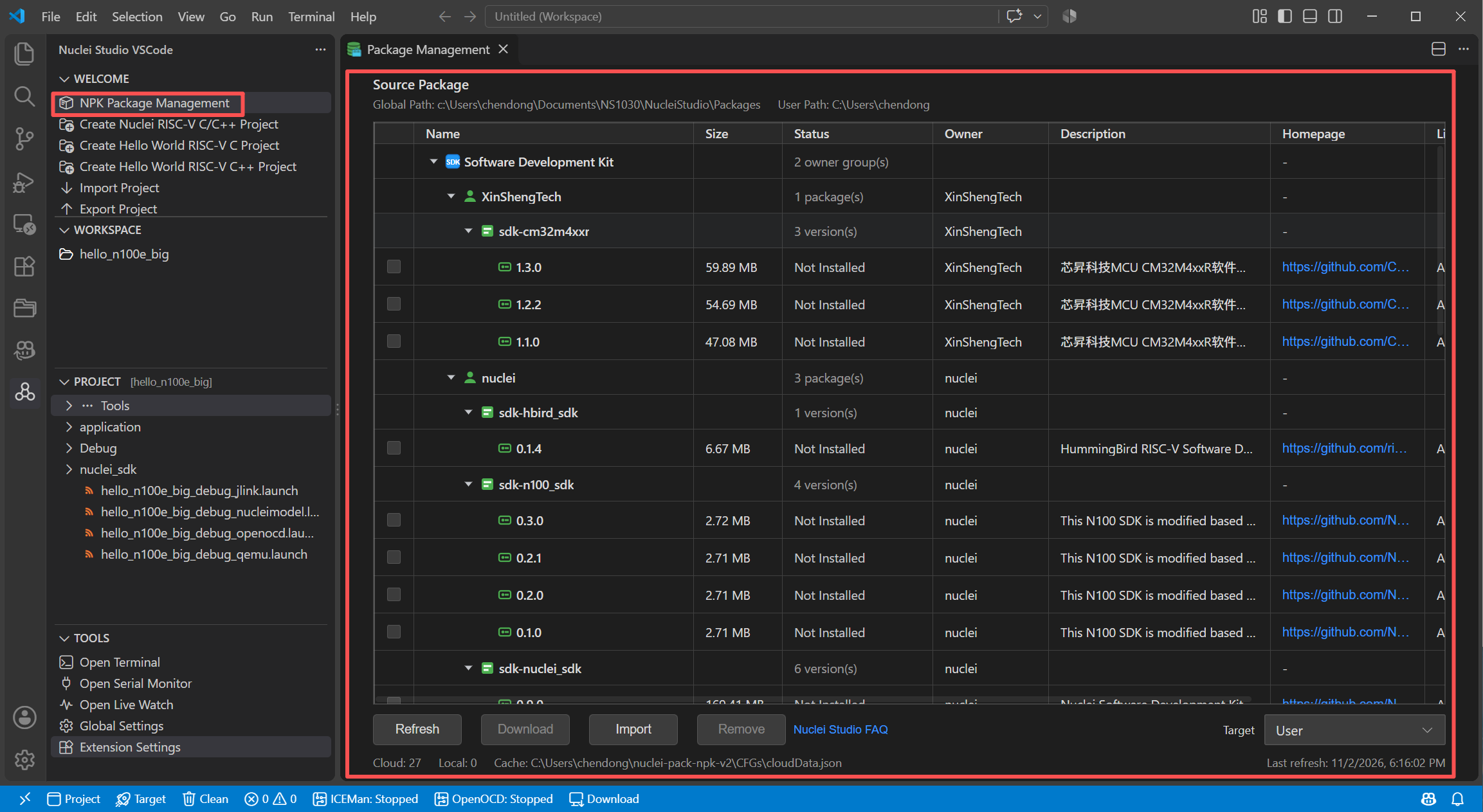
The page shows the NPK packages available from the cloud and installed locally, organized as a tree of Type -> Owner -> Name -> Version, with columns for Name, Size, Status, Owner, Description, Homepage, License, and IDE Version. The supported package types include SDK (Software Development Kit), SSP (SoC Support Package), CSP (Core Support Package), BSP (Board Support Package), APP (Application Package), OSP (RTOS Support Package), MWP (Middle-ware Package), BDP (Bundle Package), TPP (Template Package), and Tool Package.
The status of a package version can be Not Installed, Installed (User), Installed (Global), or Installed (Directory):
Packages installed to the user path can only be used by the current computer user; the user path defaults to the user home directory and can be changed with
nucleiStudio.npk.userPath.Packages installed to the global path can be used by all computer users; the global path defaults to the
Packagesfolder of the Nuclei Studio IDE installation and can be changed withnucleiStudio.npk.globalPath.
The installation paths are derived automatically when the Nuclei Studio IDE installation folder is configured; see Configure the Nuclei Studio IDE Installation Folder.
3.4.2. Managing Packages
The buttons at the bottom of the page provide the following actions:
Refresh: refresh the package list from the cloud. The list is also refreshed automatically the first time the page is opened when no local package data exists.
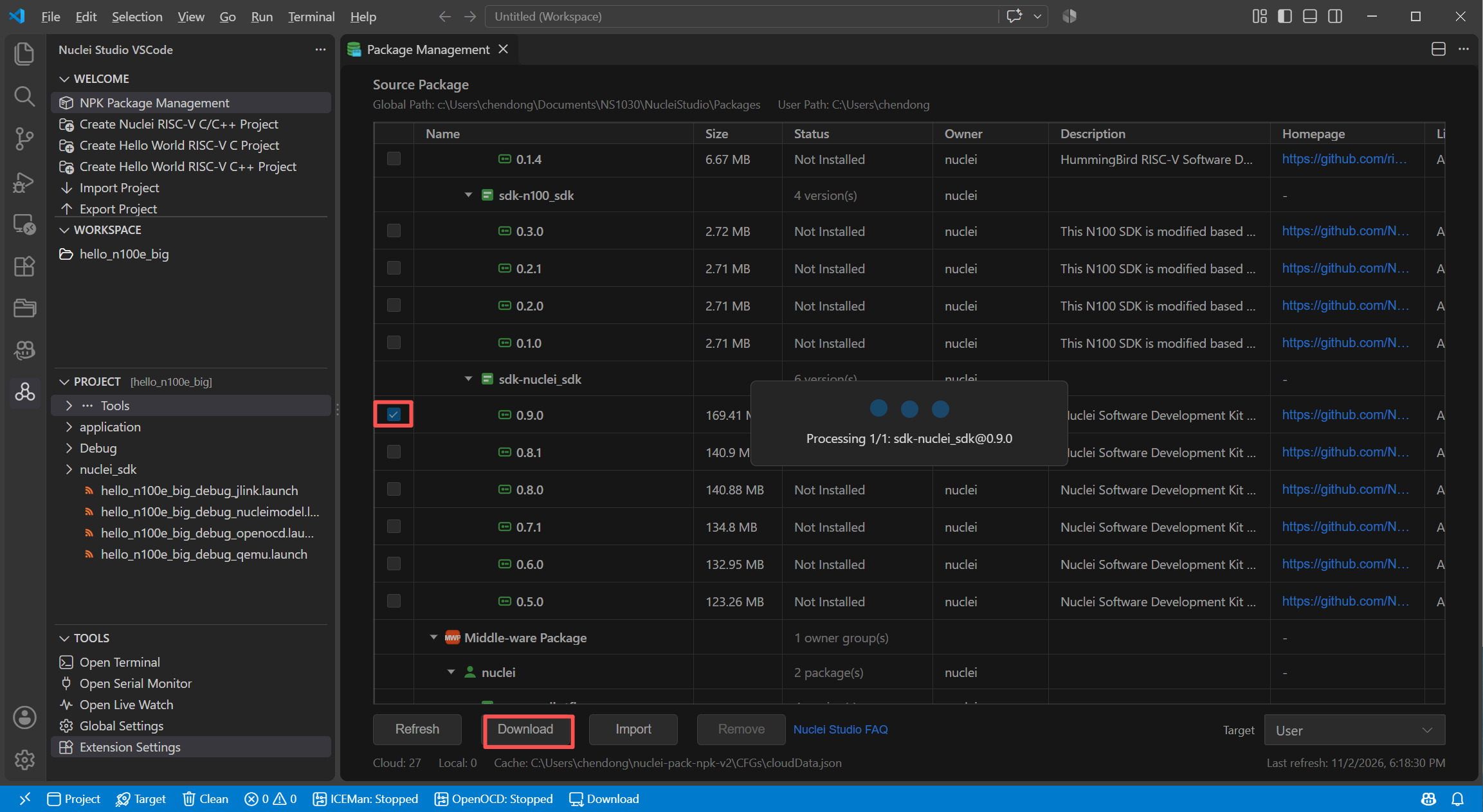
Download: check one not-installed package version and click
Downloadto download and install it. Dependent packages are resolved and downloaded together, and a warning is shown if the package is not marked as compatible with the current IDE version. Use theTargetselector next to the buttons to choose whether the package is installed to theUserorGlobalpath.Import: import a local NPK package from a ZIP file or a folder. A folder imported this way is referenced in place (
Installed (Directory)) instead of being copied.Remove: remove the selected installed packages. Packages referenced from a directory are only unregistered; their files are not deleted.
Creating projects from the installed NPK packages is described in Create a Project in Nuclei Studio VSCode.