3.6. Build a Project in Nuclei Studio VSCode
Nuclei Studio VSCode builds projects with the toolchain and build tools shipped with Nuclei Studio IDE. The build system is compatible with Eclipse CDT managed build: makefiles are generated from the project’s .cproject file into the build configuration directory (such as Debug/), and make from the IDE’s build tools is invoked to build the project. Pre-build and post-build steps configured in the project are supported, and parallel build is honored according to the project settings.
Build output is shown in the Nuclei Build channel of the VS Code Output panel, ending with a summary such as Build Finished. 0 errors, 0 warnings..
3.6.1. Build, Clean, and Rebuild
Make sure the intended project is the active project (see Create a Project in Nuclei Studio VSCode), then use one of the following entries:
The
Toolstoolbar at the top of the PROJECT view:Build,Clean,Rebuild, andDebug.The context menu of a project in the WORKSPACE or PROJECT view.
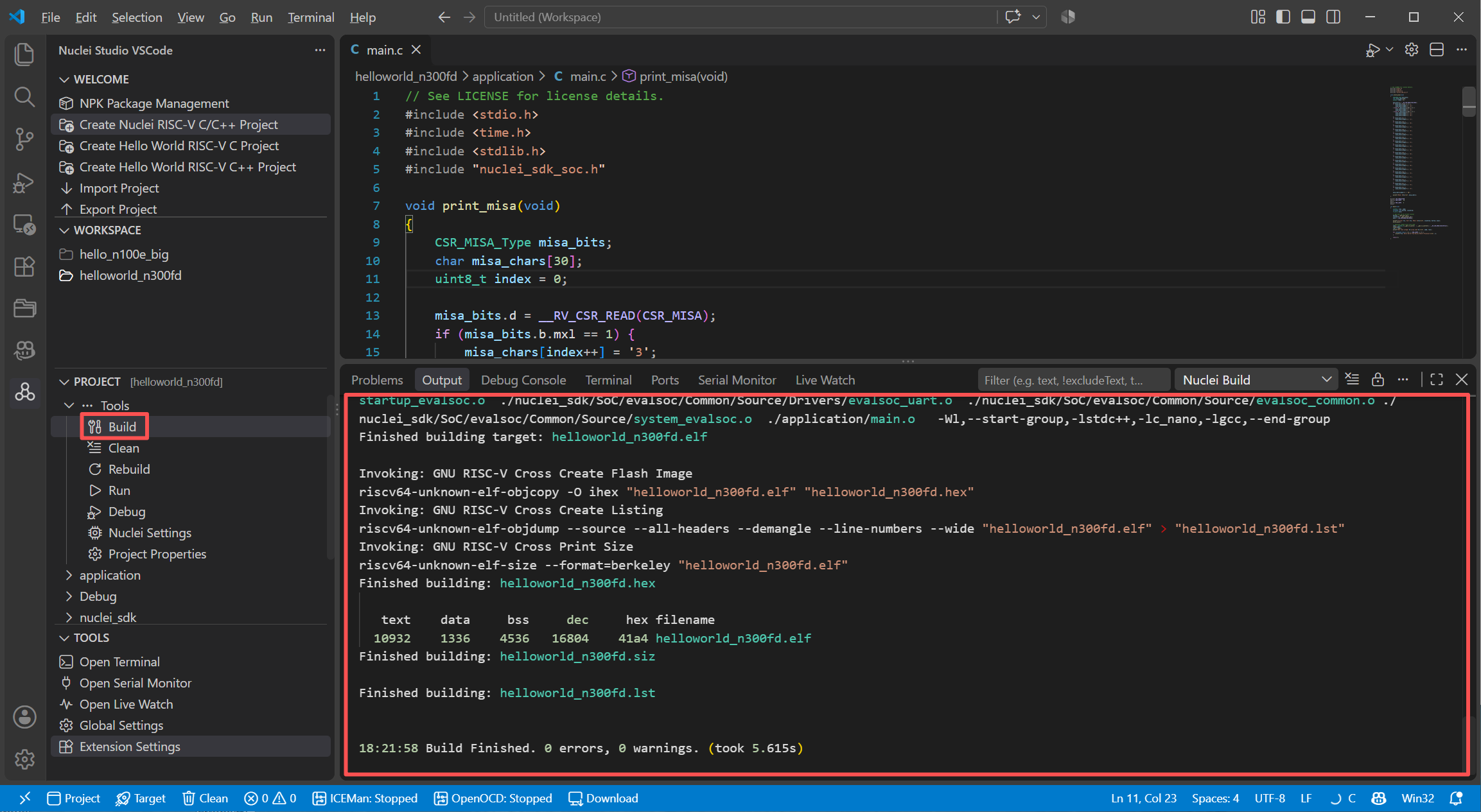
3.6.2. Build Configurations
Each project has Debug and Release build configurations. The active configuration is stored per project. Use Build Configurations in the project context menu to manage them:
Set Active: switch the active build configuration betweenDebugandRelease.Manage...: manage the build configurations.Build All/Clean All/Build Selected...: batch build or clean operations over the build configurations.
3.6.3. Build or Clean Selected Files
In the PROJECT view, right-click one or more source files and choose Build Selected File(s) or Clean Selected File(s) to compile only the selected files, or delete their generated object files. This is useful for a quick syntax check of a single file.
3.6.4. Exclude Resources from the Build
In the PROJECT view, right-click a file or folder and choose Resource Configurations -> Exclude from Build... to exclude it from the selected build configurations. Excluded items are shown greyed out with a slashed-circle icon. Choose Resource Configurations -> Reset to Default... to remove the exclusions and restore the defaults.
3.6.5. Toolchains
The toolchain used by a project is selected when the project is created, and can be changed later in the Nuclei Settings page or the Project Properties page (see Advanced Usage of Nuclei Studio VSCode). The toolchain paths are derived automatically from the Nuclei Studio IDE installation folder (see Configure the Nuclei Studio IDE Installation Folder):
RISC-V GCC/Newlib (riscv64-unknown-elf-gcc) and RISC-V Clang/Newlib (riscv64-unknown-elf-clang):
<NucleiStudio>/toolchain/gcc/binRISC-V Big Endian GCC/Newlib (riscv64be-unknown-elf-gcc):
<NucleiStudio>/toolchain/gccbe/binRISC-V Nuclei GCC (riscv-nuclei-elf-gcc):
<NucleiStudio>/toolchain/gcc10/binTerapines ZCC:
<NucleiStudio>/toolchain/zcc/bin
If a build fails because the toolchain, build tools, or make cannot be found, check the nucleiStudio.installFolder setting and the derived paths; see Nuclei Studio VSCode FAQ.