3.1. Introduction to Nuclei Studio VSCode
Nuclei Studio VSCode is a Visual Studio Code extension developed by Nuclei for developing, building, and debugging embedded applications on Nuclei RISC-V processors.
It works on top of the Nuclei Studio IDE: the build tools, RISC-V toolchains, OpenOCD, and Nuclei Model shipped with the IDE are reused directly,
and the paths of these tools are derived automatically from the IDE installation folder once the nucleiStudio.installFolder setting is configured.
Projects created by Nuclei Studio VSCode are Eclipse CDT compatible (.project / .cproject), so they can be opened in Nuclei Studio IDE, and projects created in Nuclei Studio IDE can be imported into Nuclei Studio VSCode.
Note
Nuclei Studio VSCode uses its own version number; the current version is 0.2.0. The tools it drives come from the Nuclei Studio release (such as 2026.10), whose version covers the whole package, including the Nuclei Studio IDE, the RISC-V toolchain, OpenOCD, QEMU, and Nuclei Model.
3.1.1. Features
Project Management
Create projects from NPK template projects or Hello World C/C++ templates
Import and export projects
Workspace and project management: switch workspace, set the active project, rename, delete, and refresh projects
Project content view with full file operations, per-file build settings, and build configurations (Debug/Release)
Build & Debug
Build, clean, and rebuild projects with one click, using the toolchain and build tools shipped with Nuclei Studio IDE
Debug on hardware or simulators via OpenOCD, J-Link, QEMU, or Nuclei Model, with graphical editors for
.launchfilesLive Watch view for real-time variable monitoring, Live Plot, and CSV logging during debug
SDK & Package Management
Manage SDKs and install NPK component packages (SDK/SSP/BSP/APP and more) with the NPK Package Management page
Open a terminal with the paths of all the Nuclei tools set up automatically
Code Intelligence
IntelliSense support based on the project build model, through the Microsoft C/C++ extension
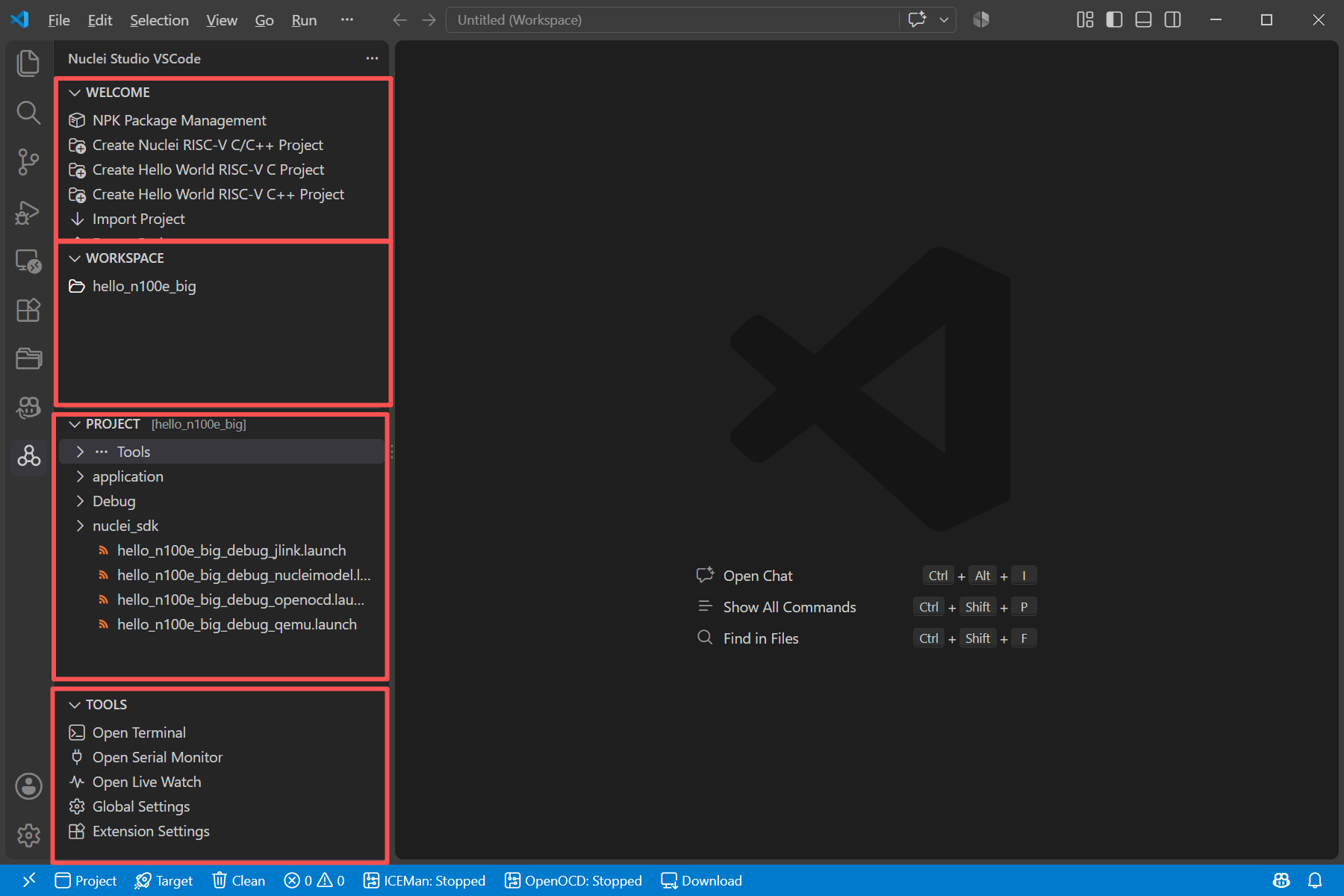
3.1.2. The Nuclei Studio VSCode View Container
The extension provides a Nuclei Studio VSCode icon in the VS Code activity bar. Clicking it opens a view container with 4 panels:
WELCOME: the entry for new users and a collection of frequently used operations, including
Configure Nuclei Studio Install Folder(only shown when the install folder is not configured),NPK Package Management,Create Nuclei RISC-V C/C++ Project,Create Hello World RISC-V C / C++ Project,Import Project/Export Project, andSwitch Workspace.WORKSPACE: lists all projects in the current Nuclei Studio workspace. Click a project to make it the active project; build and debug always target the active project. Title bar buttons provide new, import, export, refresh, and delete project actions, and a Rebuild Index action for IntelliSense.
PROJECT: shows the file content of the active project as a tree, with full file operations (including
Ctrl+C/Ctrl+X/Ctrl+V,Delete,F2,Ctrl+Z/Ctrl+Yshortcuts) and aToolstoolbar providing build, clean, rebuild, run, debug, Nuclei Settings, and project properties actions.TOOLS: entries to commonly used tools:
Open Terminal,Open Serial Monitor,Open Live Watch,Global Settings, andExtension Settings.
In addition, a separate Live Watch view container in the activity bar hosts the Live Watch view used during debug sessions; see Live Watch.
3.1.3. Requirements
Nuclei Studio IDE installed; Nuclei Studio VSCode works on top of it. See Nuclei Studio VSCode Download and Installation.
The following companion extensions, which are installed automatically from the VS Code Marketplace as dependencies of this extension:
Serial Monitor (
ms-vscode.vscode-serial-monitor)CDT GDB Debug Adapter Extension (
eclipse-cdt.cdt-gdb-vscode)Memory Inspector (
eclipse-cdt.memory-inspector)Peripheral Inspector (
eclipse-cdt.peripheral-inspector)
Optional: the Microsoft C/C++ extension (
ms-vscode.cpptools) for IntelliSense support; see IntelliSense.
3.1.4. Extension Settings
The extension contributes the following settings (under the MCU category in the VS Code Settings page). Most of them are derived automatically from the Nuclei Studio IDE installation folder; see Configure the Nuclei Studio IDE Installation Folder.
nucleiStudio.installFolder: Nuclei Studio IDE installation foldernucleiStudio.buildToolsFolder: build tools foldernucleiStudio.riscvToolchain.*.path: paths of the various RISC-V toolchains (GCC Newlib, Big Endian GCC/Newlib, Nuclei GCC, Terapines ZCC, Clang Newlib, GCC Linux, GCC RTEMS, and custom toolchains)nucleiStudio.openocd_path/nucleiStudio.openocd_executable: OpenOCD locationnucleiStudio.jlink_path/nucleiStudio.jlink_gdbserver: SEGGER J-Link locationnucleiStudio.nucleimodel_path/nucleiStudio.nucleimodel_executable: Nuclei Model locationnucleiStudio.npk.globalPath/nucleiStudio.npk.userPath: NPK package installation paths; see NPK Package Management in Nuclei Studio VSCodenucleiStudio.liveWatch.*: Live Watch sampling interval, variable/plot limits, and CSV auto-save options; see Live Watch Settings