3.8. Advanced Usage of Nuclei Studio VSCode
3.8.1. Live Watch
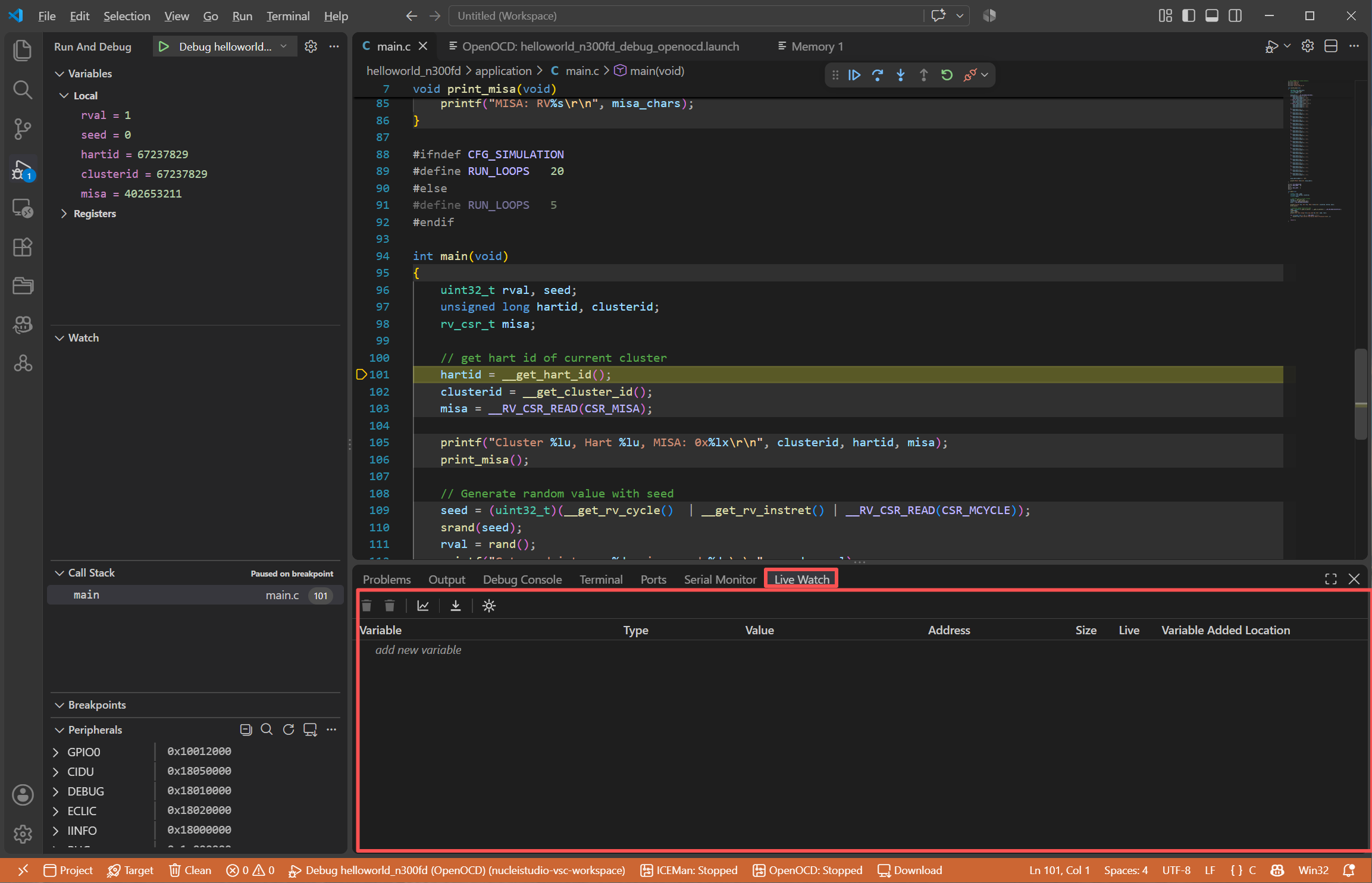
Live Watch is a real-time monitoring tool: while the target is running at full speed (without halting), it reads variable values from the target memory periodically and displays them in the Live Watch view, with Live Plot real-time curves and CSV data export. For the Live Watch feature in Nuclei Studio IDE, see Using Live Watch.
Live Watch requires a debug session based on Nuclei OpenOCD with the SBA (System Bus Access) feature, and the CPU must support SBA as well. While the target is running, values are polled through the OpenOCD telnet port (default 4444); while the target is halted, values are read through the GDB channel.
3.8.1.1. Using Live Watch
Open the Live Watch view from the Live Watch container in the activity bar, or click Open Live Watch in the TOOLS panel.
Add variables: variables can only be added or edited while the target is halted. Each variable shows its type, value, address, size, and the location where it was added.
Modify values: values can be written to the target while it is halted.
Number format: switch the display format of a variable (Default, Hex, Decimal, Octal, Binary) from its context menu.
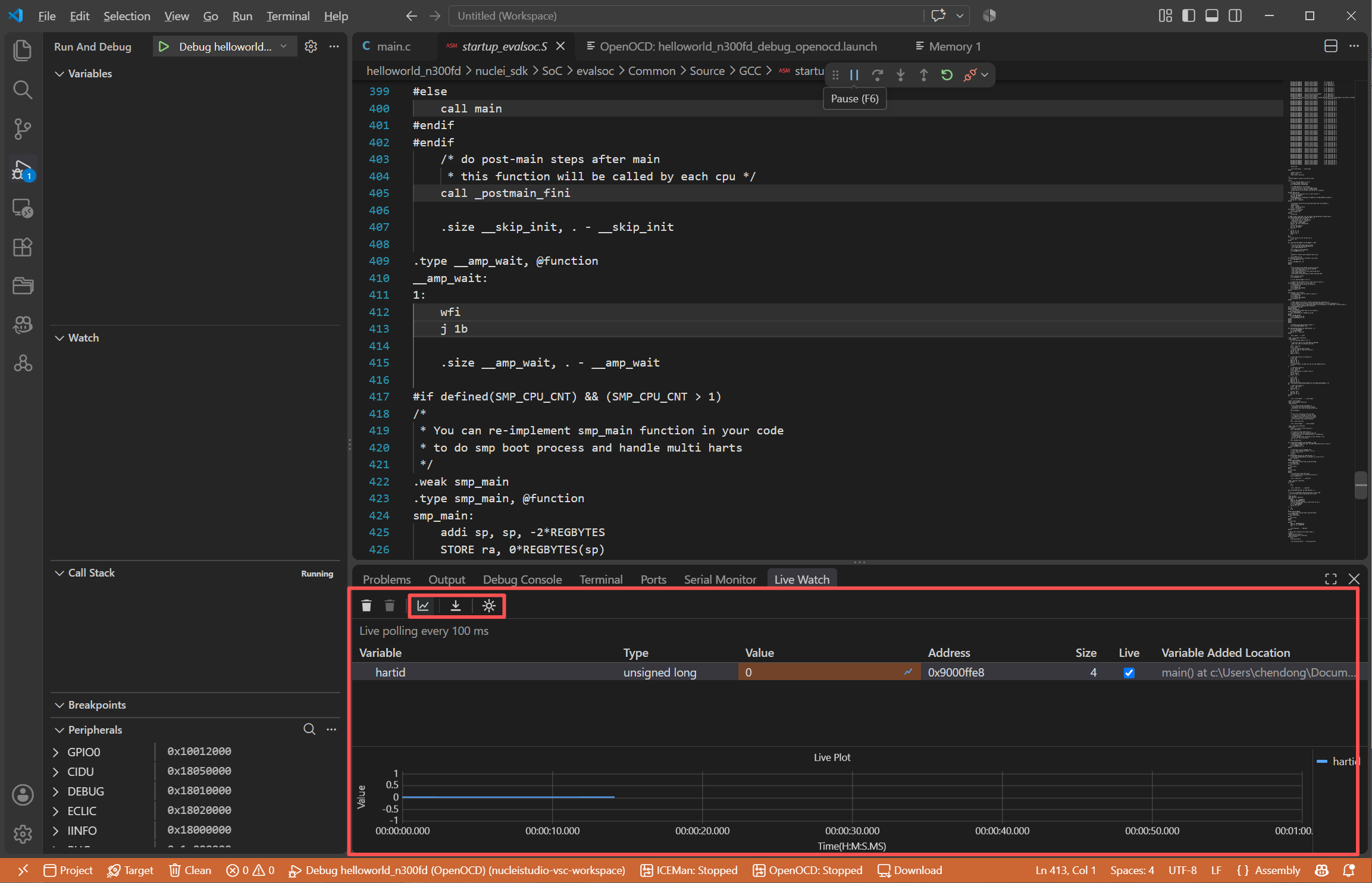
Live Plot: toggle
Live Ploton a variable to plot its value over time in the built-in chart. Right-click the chart to suspend or continue plotting.Save as CSV: save the recorded values of a variable (or all variables) to a CSV file from the context menu.
3.8.1.2. Live Watch Settings
Click the settings button in the Live Watch view to open the Live Watch Settings dialog, or edit the corresponding settings directly:
nucleiStudio.liveWatch.speedMs: sampling interval in milliseconds; the default is 100 and the minimum is 10.nucleiStudio.liveWatch.variableLimit: maximum number of variables watched live at the same time (0-10); the default is 10.nucleiStudio.liveWatch.plotLimit: maximum number of variables plotted in Live Plot at the same time (0-10); the default is 10.nucleiStudio.liveWatch.saveDataPath: directory for automatically saved Live Watch CSV data; empty means the project’sDebugfolder.nucleiStudio.liveWatch.saveDataSpeedMin: interval in minutes for automatically saving Live Watch CSV data; the default is 10.
3.8.2. Nuclei Settings
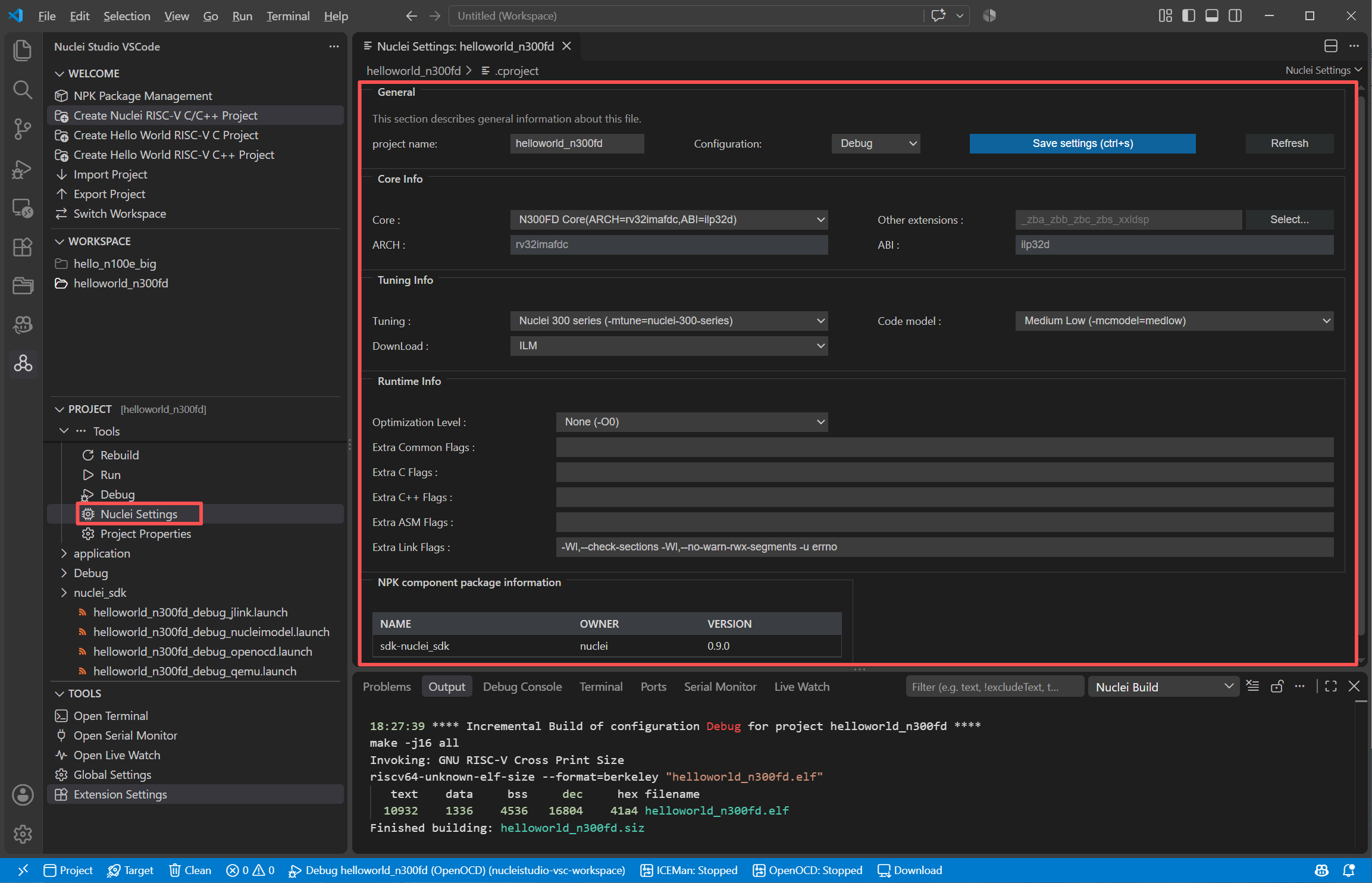
Nuclei Settings is the quick configuration page of a project. Right-click a project and choose Nuclei Settings (or open the project’s .cproject file with the Nuclei Settings editor) to open it. It provides the following sections:
General: the project name, and the build configuration (
Debug/Release) the page applies to.Core Info: the Nuclei processor core of the project; the ARCH and ABI are derived automatically. Use
Other extensionsor theSelect...button to configure RISC-V ISA extensions; see RISC-V ISA Extension Selector.Tuning Info: the tuning (
-mtune) option, the code model, and the download mode / linker script of the project.Runtime Info: the optimization level (
-O0…-Oz) and extra flags for the C, C++, ASM, and link steps.NPK component package information: the NPK packages the project depends on.
Click Save settings (or press Ctrl+S) to apply the changes; the project’s .cproject, .nuproject, and .launch files are updated accordingly.
3.8.2.1. RISC-V ISA Extension Selector
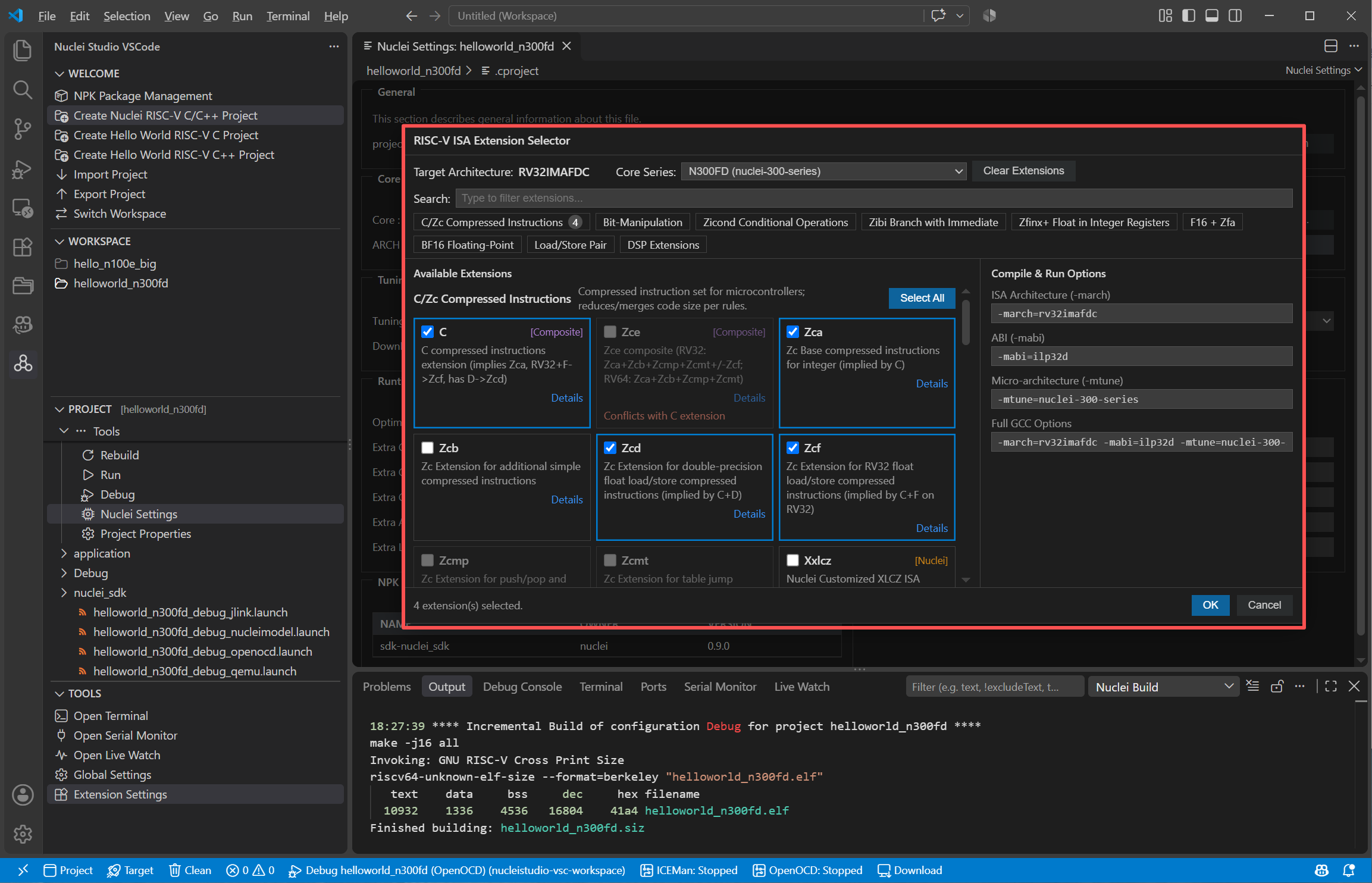
Click Select... next to Other extensions in the Nuclei Settings page to open the RISC-V ISA Extension Selector. Select the target architecture (RV32/RV64) and core series, then check the extensions in the Available Extensions list; dependency and conflict rules between extensions are handled automatically. The resulting -march, -mabi, -mtune, and the full GCC options are previewed on the right. Confirm with OK to fill the extension string back into the Nuclei Settings page.
3.8.3. Project Properties and Resource Properties
Project Properties: right-click a project and choose
Project Propertiesto edit resource information, linked resources, build environment, builder settings and behavior, and the tool settings of each toolchain tool (target processor, optimization, warnings, debugging, and more). The Target Processor page also provides the Endian option (-mbig-endian/-mlittle-endian), typically used with the RISC-V Big Endian GCC/Newlib toolchain.Resource Properties: right-click a file or folder and choose
Resource Propertiesto view and edit the settings of that resource, such as excluding it from the build or customizing the build of a single file.
3.8.4. Open Terminal
Click Open Terminal in the TOOLS panel to open a Nuclei Studio Terminal, in which the paths of the build tools, OpenOCD, all configured toolchains, J-Link, Nuclei Model, and QEMU are prepended to PATH, so the Nuclei tools can be used directly from the command line.
In the PROJECT view, right-click a folder and choose Show in Local Terminal -> Terminal or Git Bash to open a terminal at that location.
3.8.5. IntelliSense
If the Microsoft C/C++ extension (ms-vscode.cpptools) is installed, Nuclei Studio VSCode provides IntelliSense for the projects: the include paths, defines, and compiler options are computed from the same build model used for building, and kept up to date when the project changes.
Symbol browsing is scoped to the active project.
Click the Rebuild Index button in the WORKSPACE view title bar to rebuild the IntelliSense index.
3.8.6. Project Conversion
Right-click a project and choose Convert GCC 10 Project to GCC 13 to convert a project created with the legacy GCC 10 toolchain to the GCC 13 toolchain: the toolchain prefix and options in .cproject are rewritten, and the related .launch files are adjusted. Rebuild the project after the conversion.